Внешкольное (дополнительное) образование и воспитание
6
Поделиться
Аннотация
This article describes in detail how to use computer programs in teaching music culture, how to use them, how to use them and how to achieve lesson effectiveness.
Библиографическое описание
Ибрагимов, Б. М. Methods of using computer software in teaching music culture / Б. М. Ибрагимов. — Текст : непосредственный // Образование и воспитание. — 2022. — № 4 (40). — URL: https://moluch.ru/th/4/archive/231/6982.
This article describes in detail how to use computer programs in teaching music culture, how to use them, how to use them and how to achieve lesson effectiveness.
Keywords:
music culture, computer programs, technology, interface, Sibelius, music editor, methodical style.
Sibelius interfaces
Applications allow the user to perform specific actions. Examples of operations include text input, drawing, photo processing, illustration, audio and video data processing, various graphics and operations, communication, and accounting.
When developing skills in interacting with a computer system and working with application software, it is usually helpful to familiarize oneself with the program interface, that is, the process that organizes the communication between the user and the program.
Many books have been written on how computers work. Like any technical device, a computer communicates with a person through a set of rules that are binding on both the machine and the person. These rules are called
interfaces
in computer literature. The interface can be clear or obscure, friendly or non-existent. Many qualities fit him. But in one thing it is constant: it remains so and so.
According to the definition of the interface, the rules of interaction of the operating system with users, as well as the neighboring levels of the computer network. Human-computer communication technology depends on the interface.
Therefore, the «Sibelius» music editor interface consists of the following.
Working with tape
The ribbon
is a wide ribbon of command buttons that appear at the top of the Sibelius window, where all the functions of the program are located.
(1-photo)
Fig. 1
Above is a series of Sibelius tapes. Each named section is displayed as a ribbon and consists of its own set of commands.
The ribbon line interface of the Sibelius music editor has been available to users since the
Sibelus 7
version.
In addition to the ribbon, each Sibelius document window also has useful controls.
–
There are three important buttons on the
Quick Access Toolbar
(for Windows only
):
save, cancel, and redo
. The Cancel and Restore buttons are also attached to them, allowing Sibelius to quickly cancel and return anywhere after opening the document.
– The title bar
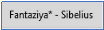
displays the name of the document file and the name of the current dynamic batch (if any) or the version displayed on the screen. In Windows, if the file is not saved, an asterisk (*) appears after the file name.
– The Window Status buttons
in the title bar contain a set of buttons to work with the current window. In Windows, these buttons appear in the upper right corner. You can change the status of the Sibelius note editor by selecting the first of the three Windows buttons:
–
Sibelius is used to drag a document window from the screen to the taskbar without closing the file;
–
The File Size button is the second of three buttons used to
restore / reduce
the maximum window size of a Sibelius file document. This button resizes the document window, and by clicking this button, the window changes between the dimensions: maximum or previous;
–
The Active Window Close button is the third of three buttons, and as the name suggests, pressing this button completely closes the current window.
– The search box
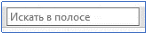
helps the user find any items they need by entering one or more keywords to see a list of recommended controls on any tab of the ribbon. This method is especially handy for determining where the item you are looking for is. When the required item is entered in the search box, Sibelius displays a list of corresponding controls: enter the desired keyword or character, and then press the
RETURN
button. Sibelius produces information that can be used for any query.
– The belt position
occupies the vertical space as described below. If you want to see more while working on the Sibelius work window, you can minimize the ribbon by clicking this button. After that, the ribbon disappears and only tabs remain at the top of the screen. To return the ribbon, press the button again, you can lock the ribbon so that it is always visible, or the ribbon temporarily appears and disappears again until you select the desired item shortcut.
– Click this button
to open the Data Help Guide on the screen, and you can find additional help for the Sibelus music editor.
—By clicking the
Change Document Shortcut button
, the name of one of the required documents in the workspace is selected, and Sibelius activates the selected document. (
2 photo)
Fig. 2
*
The tape
will be covered in more detail in later articles.
– Document tabs
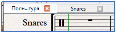
allow you to open several different views of the same document in a single window — for example, the whole score and individual batches in one window, and use these tabs to perform operations between them.
Sibeliusda yangi hujjat yaratilayotganda faqatgina «Полная партитура» (Full Screen) is displayed. You can use the button to the right of the document shortcut bar to open new tabs or use other options to change the appearance (by pressing the
«W»
key on the keyboard, Sibelius notation editor presents the dynamic batch of the whole score as a new document between the document tabs.). You can change the order of the tabs by simply dragging them (left or right). You can also move one of the scores or parts seen in this window to a new window of Sibelius by left-clicking and dragging the selected active party document down the window and releasing the mouse button.
The current status
bar is located at the bottom of the Sibelius note editor window and provides information about the current document, as well as useful buttons for quick access.
–
To the left of the status bar is a
set of useful information:
document pages; number of beats; which dynamic party activity in the score; the position of a strong or weak part (or the first note or chord of a piece, if you have a special musical range); the harmony of the chord, represented by a chord symbol, formed by the specified beat head or all selected notes; a description of the current operation (e.g., editing an excerpt or editing text); in one way or another, the current view (sound), tone, or copied (recorded) tone is displayed; about hidden or hidden note strings; in any case, whether the magnetic circuit for selecting objects is on or off; about the font and font size of the selected text object; information such as active clock units.
– Work Area Size Management
Aslider on the right side of the current status bar, each with a "-" and "+" buttons, allows you to quickly and easily control the view size of the Sibelius workspace. On the left side of the slider, the screen can display the current state size in percentages, which is convenient for the user.
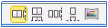
– The document view buttons
are located on the left side of the current status bar, next to the workspace dimensions, and have buttons that allow you to quickly switch between different views, such as horizontal and panoramic pages. These buttons are on the ribbon
Вид
(
View
) also available in the menu section.
In conclusion, it should be noted that in today's fast-paced world, it is important to increase the ability of young people to think independently, to involve them in more work, to use more computer programs in the educational process, to teach young people music, art, literature. It is very important to increase their interest in theater and other arts, to develop their talents, to organize the effective use of computer technology among the population and youth.
References:
Ibragimov B. M. «Nota editor’s Programs and principles of working with them» IJAAR; Vol.5 Issue: 10 October 2021
Ibragimov B. M. «Musiqa madaniyati fanini o‘qitishda kompyuter dasturlaridan foydalanishning nazariy asoslari» Science and Education; Vol.2 Issue: 10 October 2021
Ibragimov B. M. «Musiqiy kompyuter dasturlarining ijtimoiy hayotda tutgan o‘rni» Conference International Congress on Multidisciplinary Studies; Issue:2 ICMS-2021
Ibragimov B. M. «SIBELIUS 8.0 NOTA MUHARRIRI DASTURIDA ISHLASH METODIKASI» Uslubiy qoʻllanma. I-qism «Ilm ziyo zakovat» 2021
B. M. Ibragimov SIBELIUS 8.0 NOTA MUHARRIRI DASTURIDA ISHLASH METODIKASI. Uslubiy qoʻllanma I-qism.
Ismailov Tohir. «Musical currents and the formation of Russian classical music».
«
Вестник магистратур
ы
»
2021. № 5 (116) ISSN 2223–4047.
Можно быстро и просто опубликовать свою научную статью в журнале «Молодой Ученый». Сразу предоставляем препринт и справку о публикации.